
A better approach to populating dropdown lists in WebApps with schema enum values is to pull the values directly from the schema at runtime, rather than hardcoding them in the WebApp front end. The downside of hardcoding is that any change to the enum — whether a new value is added or an existing one is modified — requires a manual update to the WebApp. This introduces maintenance overhead and risk of inconsistency.

Solution Overview

Start by adding a JavaScript activity to your workflow and include the following utility function, which retrieves enum values dynamically from a given schema.

Step 1 — Fetch enum values from schema

/* Recipient status enum */
function fetchEnum(schemaName, enumLabel) {
    var schema = application.getSchema(schemaName);
    var enumeration = schema.enumerations.filter(function(e) {
        return e.label == enumLabel;
    })[0];

    var enumObj = [];
    for each (var s in enumeration.values) {
        enumObj.push({
            'value': s.value,
            'label': s.label
        });
    }
    return enumObj;
}

Step 2 — Call the function and serialise to context

Call the function with the schema name and enum label, then serialise the result to a workflow context variable so it is accessible from the WebApp front end.

ctx.vars.statusJSON = JSON.stringify(fetchEnum('nms:recipient', 'schStatus'));

The following example shows a custom status enum defined in the recipient schema:

<enumeration basetype="byte" name="schStatus">
    <value label="Subscriber"  name="subscriber"  value="1"/>
    <value label="Lead"        name="lead"        value="2"/>
    <value label="MQL"         name="mql"         value="3"/>
    <value label="SQL"         name="sql"         value="4"/>
    <value label="Opportunity" name="opportunity" value="5"/>
    <value label="Client"      name="client"      value="6"/>
    <value label="Other"       name="other"       value="0"/>
</enumeration>

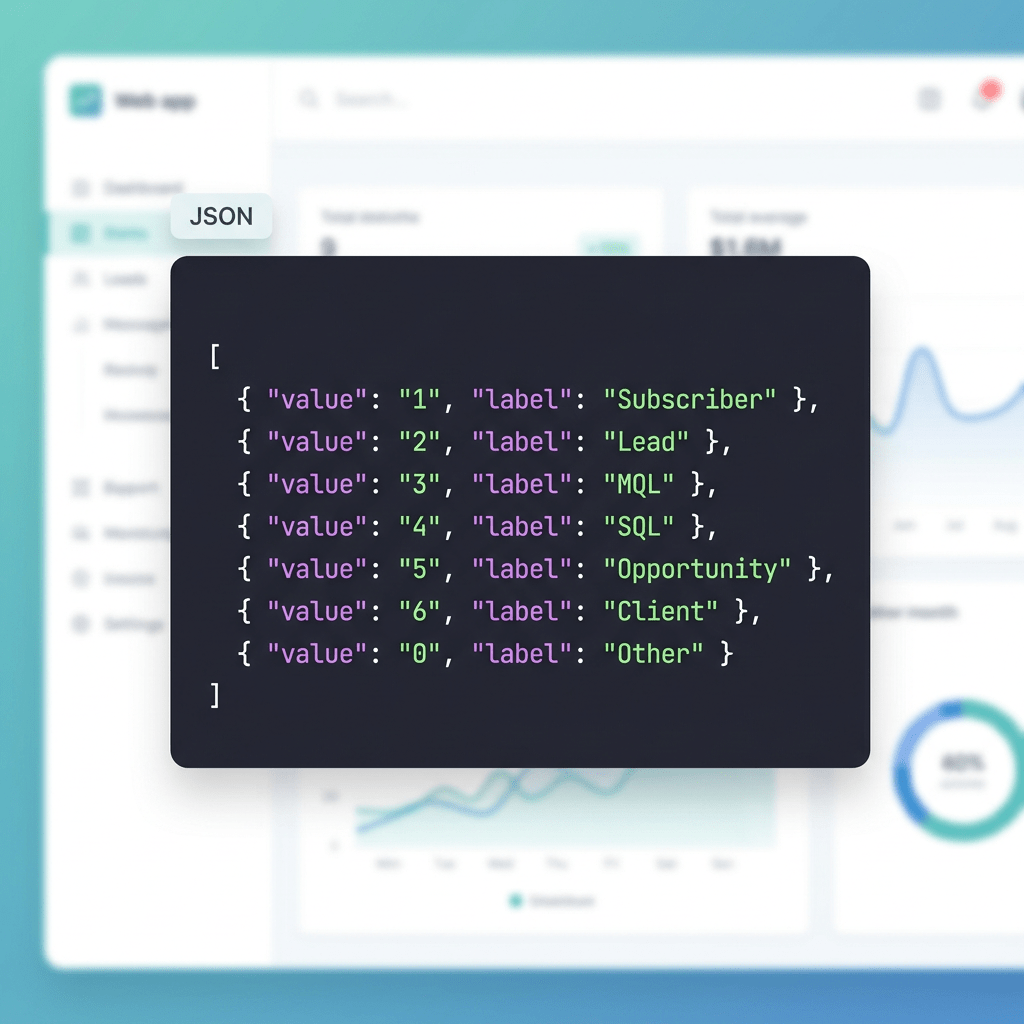
After calling fetchEnum, the ctx variable will hold the following JSON string:

[
    { "value": "1", "label": "Subscriber" },
    { "value": "2", "label": "Lead" },
    { "value": "3", "label": "MQL" },
    { "value": "4", "label": "SQL" },
    { "value": "5", "label": "Opportunity" },
    { "value": "6", "label": "Client" },
    { "value": "0", "label": "Other" }
]

Step 3 — Render the dropdown in the WebApp

Add a select element to your WebApp HTML page with an empty option as placeholder:

<div class="form-floating mb-3">
    <select name="status" class="form-select" id="status" placeholder="Choose">
        <option></option>
    </select>
    <label for="status">Status</label>
</div>

Then add the following JavaScript block to your WebApp page. It reads the serialised JSON from the ctx context, parses it, and populates the dropdown dynamically:

<script type="text/javascript">
    jQuery(document).ready(function() {

        // Retrieve status JSON string from ctx vars and parse
        var status = JSON.parse(
            document.controller.getValue('/ctx/vars/statusJSON')
        );

        // Iterate and append each option to the #status select element
        $.each(status, function(i, key) {
            $('#status').append(
                $('<option />', {
                    value: key.value,
                    text:  key.label
                })
            );
        });
    });
</script>

Result

The dropdown will be populated at runtime with the current enum values from the schema. If the enum is updated in Campaign, the WebApp will reflect the changes automatically on the next execution — no manual WebApp updates required.

Dependencies

  • jQuery (already available in ACC WebApps)

https://martech.network/
Do you like David Garcia's articles? Follow on social!

Login

Welcome! we are excited to have you.

Martech.network is an inspiring community where marketing automation experts unite to exchange innovative ideas, tackle challenges, and elevate each other. Our mission is clear: Unite minds, ignite creativity, and empower growth through digital innovation.
Registration